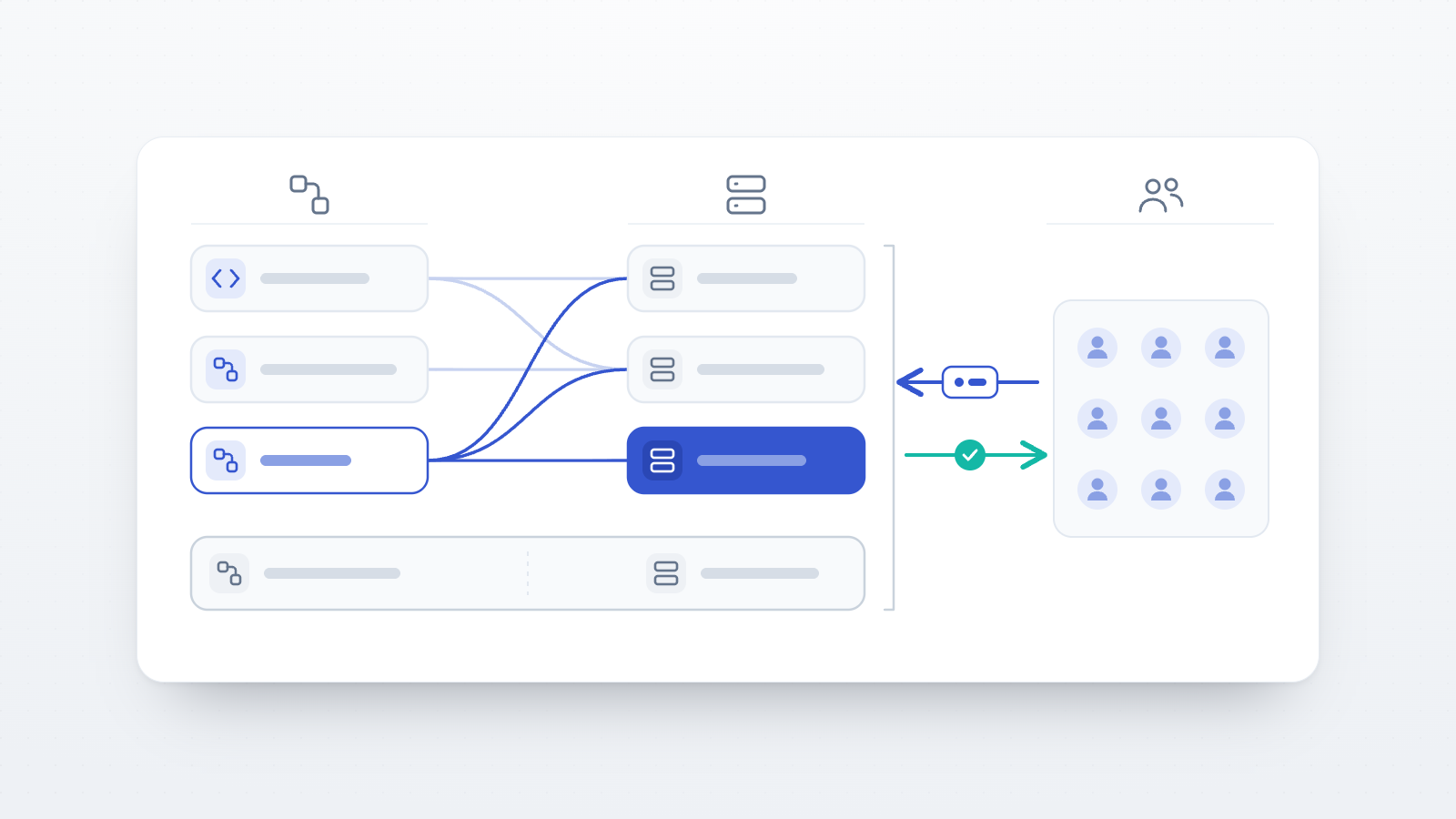
"Should we use Prolific or Open Lab?" is a question worth taking apart rather than answering, because the two are not competing options. A panel is a place where participants are recruited and paid. Open Lab is where the study runs and where the data is stored. Most studies that use a panel use both, and the connection between them is a link.
The confusion is understandable, because both are things a researcher signs up for and both appear in the methods section. But they sit at different points in the same study, and treating them as alternatives leads to a setup problem rather than a decision: the study runs, participants finish, and the panel never learns that they did.
This post sets out the three invitation types Open Lab provides, then how a panel plugs into them. The platform documentation covers the same ground in reference form: the Invitation management page for the tabs, and Recruitment integrations for the providers, with a page each for Prolific, Sona Systems, CloudResearch Connect, Mechanical Turk and lab recruitment systems. What follows is the reasoning around those steps rather than a replacement for them.
A panel and a study platform do different jobs
A participant panel maintains a pool of registered people, handles their payment, and lets you place quotas and prescreening criteria on who sees your study. Prolific was built for exactly this purpose and describes itself as a subject pool for online experiments (Palan & Schitter, 2018). Mechanical Turk, CloudResearch Connect, and a university credit pool running Sona or ORSEE all occupy the same position in a study: they are where the people come from.
Open Lab occupies the other position. It holds the lab.js task, runs the session, assigns conditions, stores the responses under the study's encryption settings, and gives you the export. Nothing in that list depends on where the participants were recruited, which is why the same study can be run with a panel one month and a departmental mailing list the next without being rebuilt.
The practical consequence is that the two decisions are independent, and each should be made on its own merits. Which panel you recruit from is a sampling and data-quality decision, and there is evidence that it matters: comparing five commonly used sources, Douglas, Ewell and Brauer (2023) found that participants recruited on Prolific and CloudResearch were more likely than those on Mechanical Turk, Qualtrics panels or an undergraduate Sona pool to pass attention checks, follow instructions, remember previously presented material and work slowly enough to have read the items. Peer and colleagues (2022) reached a similar ranking across two studies of around 4,000 participants, and found that a participant's approval rating did not predict data quality while their frequency and purpose of platform use did. Neither finding bears on where the study should be hosted, which is the separate decision.
The Invitations page has three tabs
Every study has an Invitations page at
https://research.open-lab.online/dashboard/studies/[study-id]/invitations, split into three tabs
that each have their own URL, so a tab can be bookmarked or refreshed on its own. The three exist
because there are three genuinely different recruitment situations, not because one is a more
advanced version of another.
Public links: one link for everybody
The Public links tab holds the things that identify the study itself, and they require no creation step because they already exist:
- Study code, a short unique code that a participant can type into the participant web app to find the study.
- Study link, of the form
https://app.open-lab.online/studies/ABCDE, shown with a QR code that can be copied to the clipboard for posters and in-person recruitment. - Search visibility, a toggle that decides whether the study is discoverable by title in the participant app or reachable only by people who already hold the code or link.
This is the tab that matters for panels. A panel needs one URL that it can hand to every participant it sends, and the study link is that URL. The other two tabs produce links that are specific to one person or one channel, which is not what a panel is asking for.
Direct invitations: one link per person
The Direct invitations tab creates a separate invitation for each individual, each with its own
code and its own link. Invitations are created in bulk, either by uploading a CSV or by pasting rows
in the format participantCode,groupCode,email, and any of the three fields can be left empty. A row
with only an email address is valid, and so is a row with only a group code.
Each invitation carries a status of CREATED, SENT or REGISTERED, and the status is what
makes this tab useful for tracking a defined sample: it tells you who has been contacted and who has
actually arrived. Invitations with an email address and a status of CREATED can be selected and
emailed from the platform, using a subject and HTML body you can edit and preview, with an
[INVITATION_LINK] placeholder that is replaced per recipient. Individual invitations can also be
shown as QR codes, and the table can be sorted, filtered and bulk-edited.
Two properties are worth knowing before you plan a study around this tab. First, an invitation link
is single-use. The link carries an invitationId, which Open Lab removes from the address bar once
it has been redeemed, and the server refuses to register an invitation that is already registered, so
a forwarded or refreshed link cannot be redeemed twice. Second, the number of direct invitations per
study is capped by plan: 10 on Free, 1,000 on Basic, and uncapped on Pro and above. Public links and
tracking links have no such cap, because they are not created one per person.
Direct invitations suit a named sample. A longitudinal follow-up where you need to know which of your existing participants returned, a panel of clinicians you are emailing individually, or a study where each person must be assigned a condition in advance through the group code field are all cases where this tab is the right one. A panel study is generally not, because the panel already maintains the identity of each participant and will not use links you generate one at a time.
Tracking links: one link per channel
The Tracking links tab answers a different question: where participants came from.
You define a recruitment source for each place you intend to publish the study, giving it a
human-readable label such as "Lab mailing list" or "Reddit r/science", a short code, an optional note
and an optional URL of the place itself. Open Lab then produces a link for that source by appending
?ref= and the code to the study link, and the tab reports how many participants arrived under each
one.
The counting has a few properties that are easier to know in advance than to infer from a table.
Every source you have defined appears in the breakdown even when its count is zero, so a channel that
produced nothing is visible rather than absent. Participants who arrived with no ref at all are
grouped under Direct (no tracking code), and participants carrying a code that no longer matches a
defined source are grouped under Other / removed sources, so deleting a source does not silently
discard the people it brought. The counts are of participants who started the study, excluding those
archived or marked as excluded from analysis, so they measure how many people a channel delivered
rather than how many of them finished.
Tracking links are also the layer that composes with everything else, which is the subject of a later section.
A panel consumes the public study link
With the three tabs in view, the panel question becomes concrete. Recruiting through Prolific, Mechanical Turk, CloudResearch Connect, Sona or an ORSEE installation does not use a fourth invitation type. It uses the study link from the Public links tab, pasted into the field where that provider asks for your study's URL, usually with some identifiers appended to it.
There is no provider-specific code anywhere in Open Lab. This cuts both ways. Nothing has to be built for a provider before you can use it, so a provider that is not in the documentation will usually still work. But nothing is provider-aware either: Open Lab will not warn you that a completion URL looks wrong, because it does not know what any provider's URLs look like.
Every panel integration is built from the same two halves
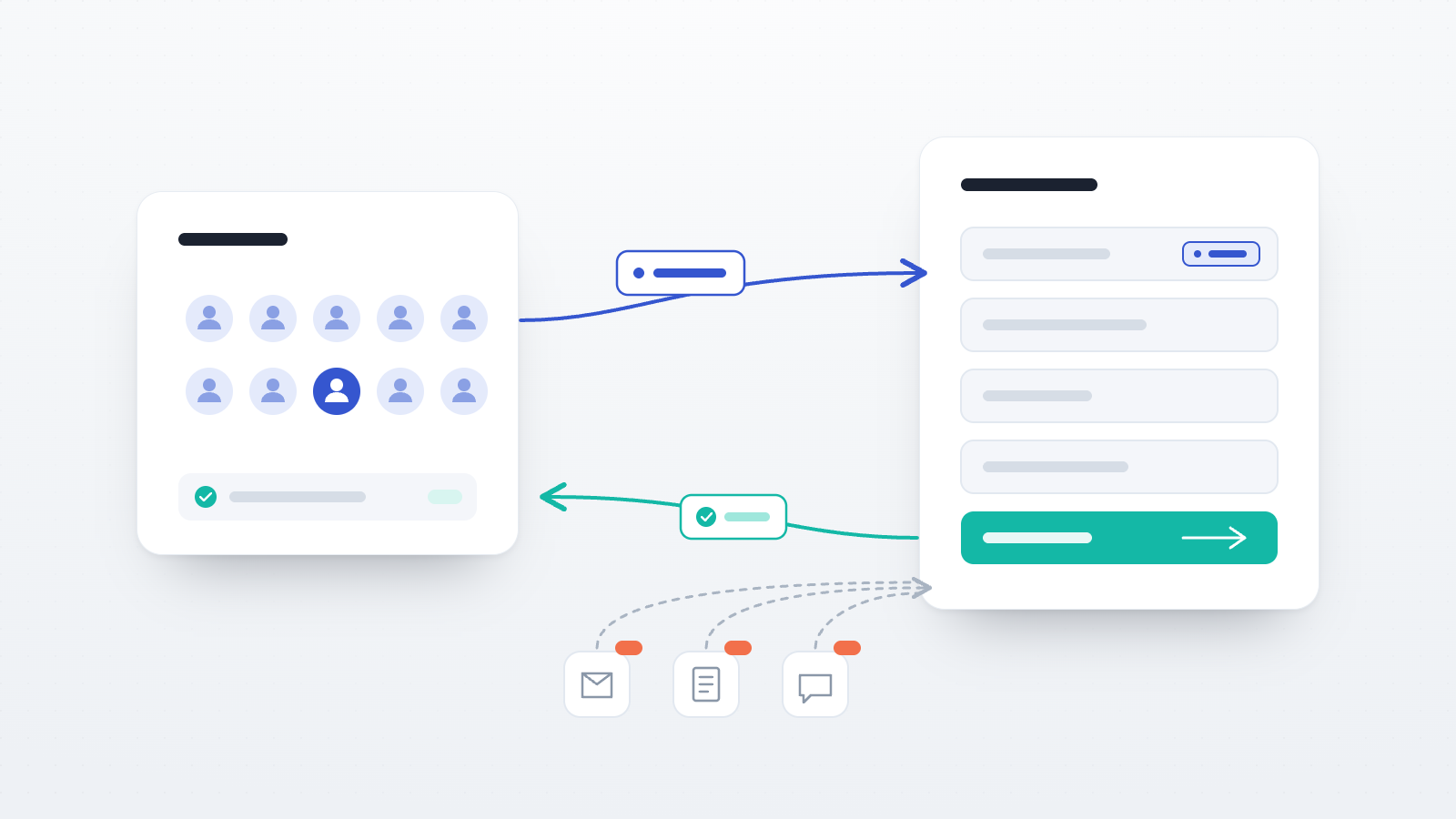
Two things have to happen for a panel study to work. The provider's identifier has to reach the session, and the provider has to be told at the end that the participant finished. Every integration is a combination of those two halves, so learning them once is more useful than learning five recipes.
Inbound: carrying an identifier into the session
Anything added to the query string of the study link travels with the participant through the whole
session. If your study link is https://app.open-lab.online/studies/ABCDE, the provider sends people
to a URL like https://app.open-lab.online/studies/ABCDE?survey_code=%SURVEY_CODE%, where the name
on the left of the equals sign is yours to choose and the placeholder on the right is one the provider
replaces with that participant's real value.
The value is stored on the participant record when they arrive, under the name you used, and it reaches three places:
- The study's Participants page, under Columns → Custom parameters. Open Lab lists one entry per parameter name it has actually seen, so the column appears only after the first participant has arrived carrying it. An empty list after a test run means the inbound half is not working.
- Your data exports and reports, alongside the participant's responses.
- A Redirect component at the end of the study, which is the other half.
The values are also readable inside the lab.js task itself, as this.parameters.survey_code, and can
be used in any content field without scripting. Two rules govern collisions, and both are documented
on the lab.js integration page. A link
parameter overrides a parameter of the same name declared in the task, which is what lets the task
carry a default that the link can change. But the platform's own assignments always win, and any link
parameter whose name begins with openlab_ is ignored entirely, so a participant cannot put
themselves into a condition or a group by editing the URL.
One failure is worth stating on its own: every parameter needs a name. A link ending in
?%SURVEY_CODE%, with the value on its own, has nothing to store it under, and it is dropped.
Outbound: telling the provider the participant finished
There are two mechanisms, and providers accept one or both.
A Redirect component placed as the last component of the study sends the participant to the completion URL the provider gave you. On a same-tab redirect the completion is recorded before the participant leaves, so nothing is lost by the session ending on someone else's site. The redirect editor takes a URL either way round: providers that hand you a finished URL with a placeholder in it are handled by pasting it whole and pointing at the placeholder, and providers that give you a bare endpoint are handled by assembling the query string yourself. Whether you need to send anything back in that URL depends entirely on the provider.
A completion code is the alternative, for providers that ask the participant to paste something back. Switching on Generate completion code in the Study Builder's participant settings, which is off by default, and Show completion code on this page on the Ending page gives each participant a unique ten-character code. The codes are stored on the participant records and included in the Participants export, so submissions can be checked in bulk rather than one at a time.
The word "completion code" means two different things across providers, and confusing them stops submissions from being approved. Open Lab's feature issues a different code to every participant, which is what Mechanical Turk's Survey Link HITs expect and what makes a lab session reconcilable afterwards. Prolific and CloudResearch Connect also offer a paste-a-code method, but theirs is one fixed code for the whole study. Switching Open Lab's feature on for those providers breaks approval, because every participant then reports a code the provider has never seen. Put the provider's single code into the text of your Ending page and leave the feature off.
Prolific, step by step
Prolific is the simplest of the integrations, because its completion URL already contains everything it needs.
Take the study link from Public links and paste it into Prolific's study URL field with the identifiers appended. Prolific offers three, using its own double-brace placeholder syntax:
https://app.open-lab.online/studies/ABCDE?PROLIFIC_PID={{%PROLIFIC_PID%}}&STUDY_ID={{%STUDY_ID%}}&SESSION_ID={{%SESSION_ID%}}
The names to the left of each equals sign are yours; keeping them identical to Prolific's own is the
convention and makes the export easier to read. You are not obliged to pass all three, but
PROLIFIC_PID is the one worth having, because it is what lets an Open Lab participant be matched to
a Prolific submission.
Then take Prolific's completion URL, which has the shape
https://app.prolific.com/submissions/complete?cc=XXXXXXXX, and add a Redirect component as the last
component of the study with that URL as its target, staying in the same tab. Add no parameters. The
code after cc= belongs to the study rather than to the participant, and Prolific already knows which
submission is open, so the URL alone tells it who to credit. This is what makes Prolific unusual:
Sona wants its survey code sent back, CloudResearch Connect sometimes wants its participant ID, and
Prolific wants nothing at all.
Two cautions. Do not use Open Lab's per-participant completion code with Prolific, for the reason
given above. And take the completion URL from your own study's settings inside Prolific every time
rather than copying one from a guide, including this one: Prolific moved its domain from prolific.co
to prolific.com, so any URL written down in an older tutorial is a candidate for being stale, and a
stale completion URL fails quietly. The study runs, the participant finishes, and no credit is
granted.
Mechanical Turk, step by step
Mechanical Turk works, but only in one of its two forms, and the reason is structural rather than a missing setting.
A Survey Link HIT sends the worker to your link and gives them a box to paste a code into. That is the supported pattern: switch on Generate completion code, show it on the Ending page, tell people in the surrounding text to copy the code back into the HIT before closing the tab, and check the submitted codes against the Participants export before approving. Note that the Survey Link template does not substitute worker identifiers into your URL, so nothing about the worker reaches Open Lab automatically. If you need the Worker ID, ask for it inside the study and treat it as data you collected.
An ExternalQuestion HIT embeds the study in a frame and expects it to submit a form back to
Mechanical Turk, by POSTing the assignment ID to turkSubmitTo/mturk/externalSubmit. The inbound half
would work fine, since those identifiers arrive as ordinary link parameters. The outbound half cannot:
a Redirect component follows a link, which is a GET request, and there is no way to express a POST in
it. The assignment would never be submitted and the worker could not be paid through the normal flow,
so the Survey Link route is the one to use. Prolific and CloudResearch Connect are the easier fit if
automatic approval is the requirement.
Sona, CloudResearch Connect and lab recruitment systems
The other three cases are variations on the same two halves.
Sona Systems grants credit automatically. It sends a survey code in as a named parameter, and
wants that same code back on its client-side completion URL, which the Redirect component takes as it
comes. One correction is worth flagging, because the Sona help page for Open Lab documents a version
of the platform that no longer exists: do not send Open Lab's participant code back to Sona. Open Lab
generates its own codes in the style of P12345, which Sona has never seen and will reject, so no
credit is granted. The value Sona needs is the survey code it issued.
CloudResearch Connect carries a participant ID in and treats arrival at its redirect URL as the
completion signal, which is a good reason to make sure the Redirect component sits after every other
component rather than before them. Connect is strict about spelling: it expects participantId,
lower case except the I in Id, and a mis-spelled parameter fails silently on both sides.
ORSEE, hroot and eRecruit are the link-only case. None of them provides a completion URL for automatic crediting, so there is no crediting step to configure. Paste the study link into the invitation your system sends and confirm attendance your own way, either from the session record, from a pool identifier passed in as a named parameter, from a completion code, or by simply asking at the start of the study when you know who is sitting at which machine.
The choice between those options has an ethics dimension. A pool identifier pasted into a study link
turns an anonymous dataset into a pseudonymous one, which changes what has to be said in the ethics
application and the privacy notice. The same is true of PROLIFIC_PID and of any other participant
identifier a provider passes in. Decide whether you need it rather than passing it by default.
Running a panel and your own channels in the same study
The two layers combine, and the tracking links tab is what makes the combination legible. A panel sends
participants to the study link carrying its own identifiers. Nothing stops you from also publishing
the study yourself, to a mailing list, a subreddit or a conference poster, with a tracking link for
each channel. Both kinds of traffic land in the same study, the same dataset and the same set of
conditions, and the recruitment breakdown separates them: the panel traffic appears as
Direct (no tracking code) unless you also give the panel a ref code, and each of your own
channels appears under its own label.
Giving the panel its own tracking code is usually the better arrangement, since a link can carry both
a ref and the provider's identifiers at once. It makes the breakdown read as a complete accounting
of the sample rather than one named channel and a residual bucket, which matters when you come to
report how the sample was recruited.
Direct invitations compose the same way. Invitation links carry query parameters through to the session exactly as public links do, so a named sample and an external identifier are not mutually exclusive.
Four settings to check before releasing to a panel
Each of these fails in a way that looks like something else, which is why they are worth checking rather than discovering.
Open Lab's own participant compensation. If a study has compensation enabled with a reward per participant, an anonymous visitor is shown an interstitial page offering to create a free Open Lab account so they can receive the reward, with an option to continue without payment. That is correct behaviour for a study recruiting through Open Lab's own participant pool, and confusing for someone who arrived from Prolific and is already being paid there. If the panel is handling payment, leave Open Lab's compensation off.
The completion code toggle, for the reason given earlier. Per-participant codes for Mechanical Turk Survey Link HITs and for lab reconciliation; the provider's own fixed code, written into the Ending page text, for Prolific and CloudResearch Connect.
The position of the Redirect component. It has to be the last component. For CloudResearch Connect in particular, arrival at the redirect URL is the completion signal, so a redirect placed earlier marks people complete before they have done anything.
The participant limit on your plan. The per-study cap is 300 participants on Free, 1,000 on Basic, 5,000 on Pro and 10,000 on Team. A panel can deliver participants considerably faster than a mailing list, so a limit that would have taken months to reach through your own channels can be reached in an afternoon.
Testing the round trip
Start the test from the provider rather than from Open Lab. The provider's identifier only exists once the provider generates it, so a plain Open Lab link cannot exercise the inbound half at all. Use the provider's own preview or test link, take the study once yourself, and then check the two halves separately:
- On the Participants page, enable the parameter's column under Columns → Custom parameters. A filled column means the inbound half works.
- Look for the credit, the approved submission or the code in the provider's own interface.
The diagnosis follows from which one fails. An empty column means the study link is wrong. A filled column with no credit means the redirect is.
What Open Lab cannot do
Two limits are better known before the study is designed than after it is built.
A study has one terminal redirect for everybody. Branching in Open Lab assigns participants to conditions by probability rather than on the basis of their answers, so a second completion path cannot be chosen at run time. This rules out the market-research marketplaces such as Cint, Lucid and Dynata, which require three separate terminal redirects for complete, screen-out and quota-full outcomes. It also means a provider's own multi-outcome codes, such as Prolific's completion paths for attention-check failures or screen-outs, cannot be selected inside the study. If you need them, the study has to end without a redirect and the outcomes have to be resolved on the provider's side by reviewing submissions.
Redirects are ordinary links and cannot submit a form, which is what rules out Mechanical Turk's frame-based ExternalQuestion HITs.
The two decisions, made separately
"Prolific or Open Lab" has no answer because the two are not substitutes. The questions that do have answers are which source will give you the sample you need at the quality you need, and how the study link and the completion signal should be wired between it and the platform running the study. The first is a sampling decision with a real literature behind it. The second is a configuration task, and once the inbound and outbound halves are clear it is a short one. The Recruitment integrations documentation walks through each provider step by step.