Many perception and attention experiments specify stimuli by their visual angle, the angle that a stimulus subtends at the observer's eye. Visual angle depends on two quantities: the physical size of the stimulus on the screen and the distance between the screen and the eye. In a laboratory, both are fixed by the equipment, usually a known monitor and a chin rest. In an online study, the task specifies stimuli in pixels, and the browser knows neither the physical size of a pixel on the participant's screen nor the participant's viewing distance.
This post describes how each quantity can be estimated during an online session, what validation studies report about the accuracy of these estimates, and how the estimates can be applied to the stimuli of a lab.js task run on Open Lab. The code examples were tested on the lab.js version that runs tasks for participants on Open Lab and on the version behind the builder preview, with simulated displays of known pixel density. The tests are described in the section on implementation.
When physical size matters
Calibration takes time and adds a source of exclusions, so it is worth deciding first whether a design needs it. Li, Joo, Yeatman and Reinecke (2020) point out that earlier online studies replicated laboratory results on proportional judgements and luminance contrast without controlling viewing distance or display size. Those studies used within-subjects designs, did not compare measurements across devices, and their results did not depend on visual angle. Li et al. name two kinds of studies that are unlikely to replicate without control of viewing distance: between-subjects studies that compare a measure across participants, and any study that requires stimuli of the same size for all participants. Their example is visual crowding, the impairment in recognising an object when other objects are close to it, whose thresholds are expressed in degrees of visual angle.
How large a pixel is on a participant's screen
The physical size of a stimulus drawn in pixels depends on the pixel density of the display, the number of pixels per millimetre. Two common displays, used without scaling by the operating system, illustrate the range. A 27-inch monitor with 1920 × 1080 pixels is about 598 mm wide and has about 3.2 pixels per millimetre. A 15.6-inch laptop screen with 1366 × 768 pixels is about 345 mm wide and has about 4.0 pixels per millimetre. A square of 100 pixels is therefore about 31 mm wide on the monitor and about 25 mm wide on the laptop. In the online sample of Muto (2025), described below, one pixel corresponded to between 0.15 and 0.46 mm, so a 100-pixel stimulus was between 15 and 46 mm wide depending on the participant's display.
Viewing distance varies as much. In the online experiment of Li et al. (2020), the estimated viewing distances of 1,153 participants ranged from 17.4 to 68.3 cm, with a mean of 47.3 cm and a standard deviation of 8.9 cm. A 31 mm square subtends about 4.5° at 40 cm and about 2.2° at 80 cm.
Three properties of web browsers add to the variation in pixel size.
CSS pixels are not device pixels. Web pages, including lab.js screens, are laid out in CSS pixels, the unit that web pages use for sizes and positions. The number of device pixels (the physical pixels of the display) per CSS pixel is available to a script as window.devicePixelRatio. On a display with a ratio of 2, each CSS pixel covers 2 × 2 device pixels. When the participant zooms the page in, the CSS pixel becomes larger and the ratio increases. Safari is an exception: there, the ratio does not change with page zoom (MDN Web Docs, n.d.).
Physical CSS units are not physical. CSS also has units named after physical lengths, such as mm, cm and in. The CSS specification defines one inch as 96 CSS pixels and one centimetre as 96/2.54 CSS pixels, and it recommends that on screens these units be derived from the pixel, noting that "the physical units might not match their physical measurements" (Atkins & Etemad, 2024, §6.2). A stimulus declared as width: 3cm is therefore 113.4 CSS pixels wide, which is about 35 mm on the 27-inch monitor above and about 29 mm on the laptop. The specification defines a reference pixel by a visual angle, that of one pixel at 96 dots per inch viewed from a nominal arm's length of 28 inches, about 0.0213° (Atkins & Etemad, 2024).
The screen size that a script can read is also given in CSS pixels. The properties screen.width and screen.height report the screen in CSS pixels, and the specification allows browsers to hide information about the screen to protect the user's privacy (W3C, 2026). A physical scale therefore has to come from the participant.
lab.js canvas screens add one further step. A canvas screen draws its content in a virtual coordinate system that is 800 × 600 units by default, and lab.js scales this coordinate system to fill the space available in the browser window. A canvas stimulus 30 units wide therefore changes its size with the window. In the tests described below, the same 30-unit square was between 7.4 and 10.0 mm wide on four simulated displays. HTML screens are not scaled in this way, so their sizes in CSS pixels stay the same when the window is resized.
Measuring the screen scale
The screen scale is the number of CSS pixels per millimetre on the participant's display at the current zoom level. Two procedures estimate it with an object of known size.
Matching an on-screen rectangle to a card
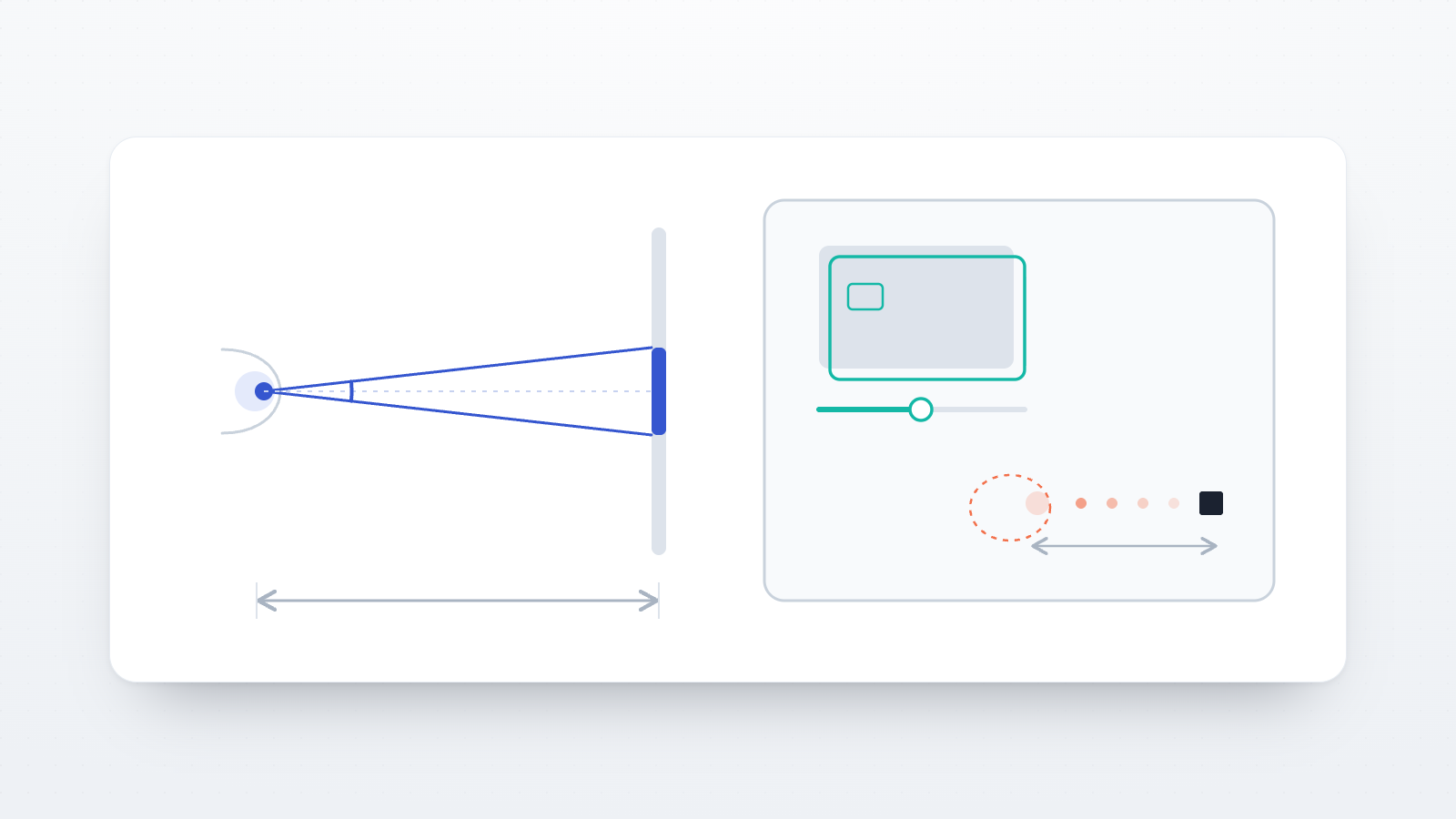
Cards in the ID-1 format, the format of bank cards and of many identity and loyalty cards, are 85.60 mm wide and 53.98 mm high (ISO/IEC 7810, as cited in International Civil Aviation Organization, 2021). In the card-matching procedure, the participant holds such a card against the screen and moves a slider until an image of the card on the screen has the same size as the real one. The width of the image in pixels, divided by 85.60, gives the screen scale. This is the first step of the "virtual chinrest" of Li et al. (2020), who asked participants for "a credit card or a card of equal size". Only the width of the image is recorded, so no information on the card is collected, and participants can be told that any card of the same format will do.
The same procedure is available in other tools, for example in the virtual-chinrest and resize plugins of jsPsych (jsPsych, n.d.-a, n.d.-b) and in ScreenScale for PsychoPy (Morys-Carter, 2021).
Muto (2025) notes two weaknesses of the card procedure: participants who do not have a card may use an object of roughly similar size, and because card sizes are standardised, some may set the slider from memory instead of measuring. The procedure also relies on a single adjustment.
Measuring line segments with a ruler
Muto (2025) proposed a calibration that uses a ruler instead of a card. The participant measures three horizontal lines of random length on the screen with their own ruler and types each length in whole millimetres. The screen scale is estimated from the three pairs of on-screen and measured lengths with a least-squares regression through the origin. A test line of a random physical length between 50 and 100 mm is then drawn with the estimated scale and measured as well. The calibration counts as successful when three criteria are met: the estimated length of one pixel lies between 0 and 1 mm, the test line is measured within 1 mm of its intended length, and the residual variance of the regression is 1 or less. Otherwise, the procedure starts again.
In simulations with one million participants whose measurements had a standard deviation of 3 mm, the estimated length of one pixel had a standard deviation of 0.007 mm among those who met the criteria. Muto describes this as an upper bound, corresponding to about ±0.7 mm for a 100-pixel line and ±3.5 mm for a 500-pixel line. In a preregistered online study with 100 participants recruited through a Japanese crowdsourcing service, 84 met the criteria on their first attempt and 12 on their second. For the 84 participants who passed at once, the whole procedure, including a final check of the screen size, took a median of 103.5 seconds. Muto names the time and effort the procedure requires, and the selection bias this could cause, as a limitation.
The study was programmed in lab.js, and the OSF project provides the calibration as a lab.js component (SizeCalibrator_eng.json, with an English and a Japanese version) and a demo, under a CC BY 4.0 licence. The component stores the result in global variables, window.coef_mm2px for HTML screens and window.coef_mm2disp for canvas screens, and components that use them have to be marked as tardy (see below). The file is saved in the format of lab.js 20.2.4, the version that runs tasks for participants on Open Lab. In an automated test that processed the file as Open Lab processes an uploaded task, the published version stopped at its test page with the error "residual1 is not defined": the script of that page assigns three variables (residual1, residual2, residual3) without declaring them, which the lab.js builder allows but Open Lab does not (see Variables in scripts in the Open Lab documentation). With const added before each of the three names in the before:prepare script of the page "test", the calibration ran to completion and recovered the simulated screen scale within 0.2%.
Estimating the viewing distance
The screen scale converts pixels to millimetres. To convert millimetres to degrees, the viewing distance is also needed. For a stimulus of width s viewed from distance d, the visual angle is θ = 2 · arctan(s / 2d), and the width needed for a given angle is s = 2 · d · tan(θ / 2). At a distance of 57.3 cm, one degree corresponds to about 1 cm on the screen.
Instructing a distance
One approach is to ask participants to sit at a given distance, or to estimate the distance from information they report. Brascamp (2021) compared three approaches in two online experiments with participants recruited on Prolific, using the participants' own tape-measure readings as the reference. Predicting the distance from body height and screen type for participants seated as they normally would gave a mean absolute error of 8.9 cm. Asking participants to sit at arm's length from the screen and predicting the distance from body height gave 7.6 cm. Estimating the distance from the blind spot for participants seated as they normally would gave 5.5 cm. For a stimulus intended to subtend 1°, the corresponding mean absolute errors in angular size were 0.18°, 0.14° and 0.11°, that is, 18%, 14% and 11% of the intended size. Overestimating the distance by a given amount enlarges a stimulus more than underestimating it by the same amount shrinks it, so the errors were skewed: stimuli were more often drawn much too large than much too small.
Locating the blind spot
Each eye has a blind spot, the part of the visual field that falls on the optic disc, where the optic nerve leaves the eye and the retina has no photoreceptors. It lies at a similar angle from the line of sight in most people. In a sample of 11,449 eyes, the blind spot lay on average 14.3° from fixation on the side of the temple, with a standard deviation of 1.4°, and about 2° below the horizontal (Wang et al., 2017).
Li et al. (2020) use this to estimate viewing distance. The participant closes the right eye and looks at a black square with the left eye, while a red dot moves from the square towards the left. The participant presses the space bar when the dot disappears. The on-screen distance s between the square and the dot at that moment, converted to millimetres with the screen scale, gives the viewing distance as d = s / tan(13.5°). The angle of 13.5° refers to the point at which the dot enters the blind spot, not to its centre, and Li et al. chose it because it gave the most accurate distances in preliminary tests with a few participants. In their laboratory validation, the procedure estimated a fixed distance of 53 cm with a mean absolute error of 2.36 cm (19 participants). Across distances of 43, 53 and 66 cm and two screen sizes, the mean absolute error was 3.25 cm (SD 2.40 cm; 12 participants). The entry point of the blind spot itself varied between participants, with a mean of 13.59° and a standard deviation of 0.96° (range 11.53° to 16.01°). In a third laboratory experiment, crowding measured with the virtual chinrest correlated at r = .86 with crowding measured with a physical chin rest (18 participants).
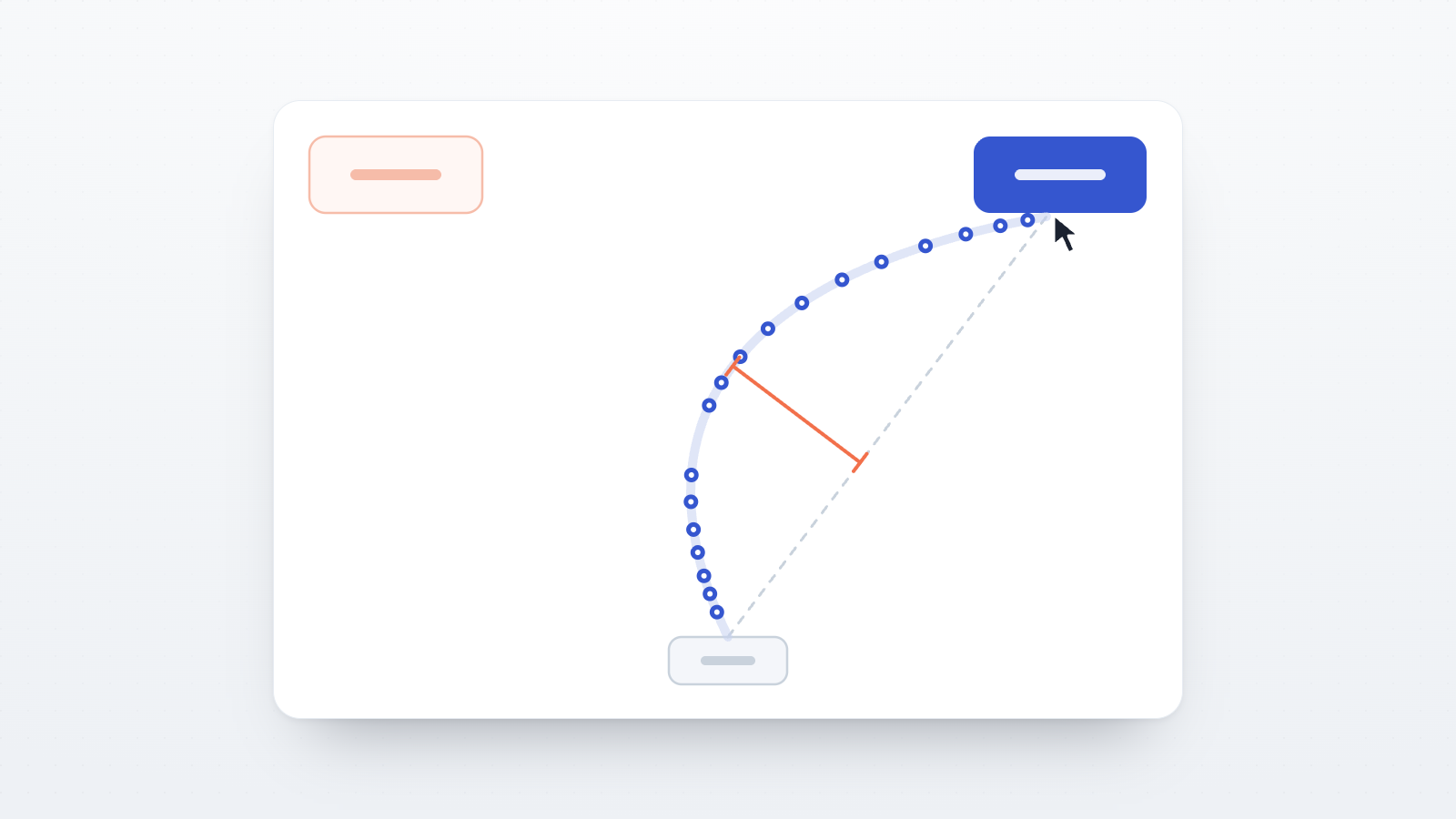
Because the calculation assumes the same angle for every participant, individual differences in the position of the blind spot enter the estimate as error. An entry point one standard deviation (about 1°) away from 13.5° changes the estimated distance by about 7%. The key press also comes after the dot has disappeared, so the recorded position lies slightly beyond the entry point. Brascamp (2021) moved the target outward and back several times and averaged both directions, which cancels this delay, and he placed the inner edge of the blind spot at 12.7°. In his second experiment, no blind-spot position could be inferred for 20% of participants.
When stimuli are specified in degrees and the distance comes from the blind spot, the screen scale cancels out of the calculation: the distance of the dot from the square in pixels already gives the number of pixels per degree. Brascamp (2021) describes this variant, which needs no card, and notes that it controls angular size directly only in the horizontal direction. Of the participants in his study who completed a card procedure, 97.7% had pixels whose height and width differed by less than 5%. A screen scale is still needed for sizes in millimetres and for reporting the viewing distance in centimetres.
Estimating distance with a webcam
Software that detects faces in a webcam image can be used to estimate viewing distance from the apparent size of the face or eyes, and to follow changes in distance during a session. EasyEyes (Kurzawski et al., 2023) uses the virtual chinrest to measure screen size and viewing distance and then tracks the distance continuously with face tracking. Brascamp (2021) did not test such methods. No peer-reviewed validation of webcam-based distance estimates in browser experiments was found for this post. A webcam also requires the participant's permission in the browser, and its use has to be covered by the ethics approval and the consent form.
Applying the calibration in a lab.js task
The examples below add a card-matching calibration and a blind-spot measurement to a lab.js task and make the results available to every later screen. They can be built in either lab.js builder that sends tasks to Open Lab: Open Lab's builder at builder.open-lab.online, which opens when you click "Edit in lab.js builder" on one of your tasks, or the public builder at labjs.felixhenninger.com. Scripts are added in a component's Scripts tab and attached to an event, here before:prepare (before the component is prepared), run (when it is shown) or end (when it ends).
The calibration result is stored in two places: in the data, so that it can be analysed and reported, and as a CSS custom property, a named value that any later screen can use in its styles. The property --mm holds the length of one millimetre in CSS pixels, and --deg holds the length of one degree of visual angle.
The calibration screen
The calibration is an HTML screen with a rectangle in the proportions of an ID-1 card, a slider and a button. Its response is "click" on button#done, with the label done.
<main class="content-vertical-center content-horizontal-center">
  <div style="text-align: center;">
    <p style="max-width: 36rem; margin: 0 auto;">Hold a bank card, or another card of the same size, against the screen. Move the slider until the grey rectangle is exactly as wide as the card.</p>
    <div id="card" style="box-sizing: border-box; width: 300px; aspect-ratio: 85.6 / 53.98; margin: 1.5rem auto; background: #d0d0d0; border: 1px solid #333; border-radius: 4%;"></div>
    <input id="card-width" type="range" min="150" max="900" step="0.5" value="300" style="width: 36rem; max-width: 90vw;">
    <p><button id="done">The rectangle matches the card</button></p>
  </div>
</main>
A script on the run event resizes the rectangle while the slider moves. Once the slider has been clicked, the arrow keys change the width in steps of 0.5 pixels, which helps with the final adjustment.
// Resize the rectangle while the slider moves, and keep its width
const card = document.getElementById('card')
const slider = document.getElementById('card-width')
const update = () => {
  card.style.width = slider.value + 'px'
  this.data.card_width_px = Number(slider.value)
}
slider.addEventListener('input', update)
update()
A script on the end event computes the screen scale, stores it together with the device pixel ratio at the time of calibration, and defines --mm:
// ID-1 cards (ISO/IEC 7810) are 85.60 mm wide
const pxPerMm = this.data.card_width_px / 85.6
this.data.px_per_mm = pxPerMm
this.data.calibration_dpr = window.devicePixelRatio
document.documentElement.style.setProperty('--mm', pxPerMm + 'px')
Every variable in these scripts is declared with const, for the reason given above for Muto's file.
HTML stimuli in millimetres
On any later HTML screen, a size in millimetres is written as a multiple of --mm with the CSS function calc(). The following square is 30 mm wide on every calibrated display:
<main class="content-vertical-center content-horizontal-center">
  <div id="stimulus" style="width: calc(30 * var(--mm)); height: calc(30 * var(--mm)); background: black;"></div>
</main>
The same notation works for images (<img style="width: calc(50 * var(--mm));">), for font sizes and for distances between elements. The browser reads the property when the screen is displayed, so the screen needs no further settings.
Canvas stimuli in millimetres
A canvas screen can be switched from automatic scaling to a fixed scale, so that one canvas unit equals one millimetre. The scale is set by a script on the before:prepare event of the canvas screen:
// One canvas unit = 1 mm (the screen must be marked as tardy)
this.options.devicePixelScaling = true
this.options.viewportScale = parseFloat(
  getComputedStyle(document.documentElement).getPropertyValue('--mm')
)
The screen must also be marked as tardy, with the Tardy checkbox in the Meta section of its Behavior tab. By default, lab.js prepares every component when the task loads, so a before:prepare script on a canvas screen would run before the participant has done the calibration. A tardy component is prepared only just before it is shown. Without this setting, the script reads an empty value, the scale is invalid, and lab.js draws the canvas without its scaling. In the tests, a 30-unit square then appeared in the top left corner of the canvas at 1.5 to 4.7 mm, and no error message was shown.
The line this.options.devicePixelScaling = true makes the scale count CSS pixels in both lab.js versions in use. Without it, the newer version behind the builder preview drew the square at half its intended size on a display with a device pixel ratio of 2. Positions (left, top) and sizes (width, height, fontSize) on the canvas are then given in millimetres, with positions measured from the centre of the canvas.
Viewing distance and degrees
The blind-spot measurement is a loop with five repetitions of one HTML screen, as in the laboratory experiments of Li et al. (2020). The screen shows a black square near the right edge of the window and a red dot that starts on the square and moves to the left. Its response is "keypress" with the filter Space.
<main style="position: relative;">
  <p style="text-align: center;">Cover your right eye and look at the black square with your left eye. Press the space bar as soon as the red dot disappears.</p>
  <div id="fixation" style="position: absolute; top: 50%; right: calc(30 * var(--mm)); width: calc(6 * var(--mm)); height: calc(6 * var(--mm)); background: black;"></div>
  <div id="dot" style="position: absolute; top: 50%; right: calc(30 * var(--mm)); width: calc(6 * var(--mm)); height: calc(6 * var(--mm)); border-radius: 50%; background: red;"></div>
</main>
A run script moves the dot at a constant speed of 20 mm per second and records how far it has travelled:
// Move the dot to the left at a constant speed, starting on the square
const dot = document.getElementById('dot')
const mm = parseFloat(getComputedStyle(document.documentElement).getPropertyValue('--mm'))
const speed = 20 * mm   // pixels per second
const start = performance.now()
const step = (now) => {
  if (!dot.isConnected) return
  this.data.dot_offset_px = Math.max(0, now - start) / 1000 * speed
  dot.style.transform = 'translateX(-' + this.data.dot_offset_px + 'px)'
  requestAnimationFrame(step)
}
requestAnimationFrame(step)
An end script converts the distance travelled into a viewing distance and stops the animation:
// The dot entered the blind spot at about 13.5° from the square (Li et al., 2020)
document.getElementById('dot').remove()   // stops the animation
const mm = parseFloat(getComputedStyle(document.documentElement).getPropertyValue('--mm'))
const offsetMm = this.data.dot_offset_px / mm
this.data.viewing_distance_mm = offsetMm / Math.tan(13.5 * Math.PI / 180)
window.viewingDistances = (window.viewingDistances || []).concat(this.data.viewing_distance_mm)
The screen after the loop averages the five estimates in a run script and defines --deg, the width of one degree of visual angle at the estimated distance:
// Average the blind-spot estimates, then define one degree of visual angle
const distances = window.viewingDistances
const distanceMm = distances.reduce((a, b) => a + b, 0) / distances.length
const mm = parseFloat(getComputedStyle(document.documentElement).getPropertyValue('--mm'))
const pxPerDeg = 2 * distanceMm * Math.tan(Math.PI / 360) * mm
this.data.viewing_distance_mm = distanceMm
this.data.px_per_deg = pxPerDeg
document.documentElement.style.setProperty('--deg', pxPerDeg + 'px')
A disc of 2° is then written as width: calc(2 * var(--deg)). One degree is defined here for a stimulus centred on the line of sight, and multiplying it treats visual angle as proportional to width on the screen. For stimuli up to 10° wide, the resulting width is within 0.3% of the exact value 2 · d · tan(θ / 2), and for stimuli up to 20° within 1.1%. For positions away from fixation, the error grows faster: a point placed 20° from fixation in this way lies at 19.2°. Positions at large eccentricities are better computed in a script as d · tan(θ) · px_per_mm.
Two details of this example differ from the published procedure. The value of 13.5° was tuned with the procedure of Li et al., including its dot speed and the delay of the key press, and a different speed changes how far the dot travels during that delay. At 20 mm per second, a key press 300 ms after the disappearance adds 6 mm, about 5% of the distance between square and dot at a viewing distance of 50 cm. Li et al.'s own implementation is available on GitHub. The example also has no exclusion rule. A plausible range of distances and a limit on the spread of the five estimates, defined before data collection, can be applied to the stored viewing_distance_mm values.
What was tested
The examples were saved in the builder file format and passed through the same assembly step that Open Lab applies to uploaded tasks. They were then run in an automated browser on lab.js 20.2.4, the version that runs tasks for participants on Open Lab, with scripts evaluated as on the platform. A simulated participant set the slider to the card width for four simulated displays with known pixel densities and device pixel ratios of 1, 1.25 and 2, and one window was resized after the calibration. The 30 mm HTML square measured between 29.99 and 30.02 mm on all four displays, including after the resize. The 30 mm canvas square measured between 29.9 and 30.2 mm, a difference of about one device pixel at the edges. The calibration row of the data contained card_width_px, px_per_mm and calibration_dpr. In the blind-spot loop, the simulated participant pressed the space bar when the dot was 13.5° from the square for simulated distances of 45, 50 and 65 cm, and the averaged estimates were within 0.3% of these distances. The calibration and both squares were also run on lab.js 23.0.0-alpha9, the version behind the builder preview, for the display with a device pixel ratio of 2, with the same results.
These tests check that the code computes and applies the calibration as intended. They do not measure how accurately participants match a card or report the disappearance of the dot, which is what the validation studies above measured.
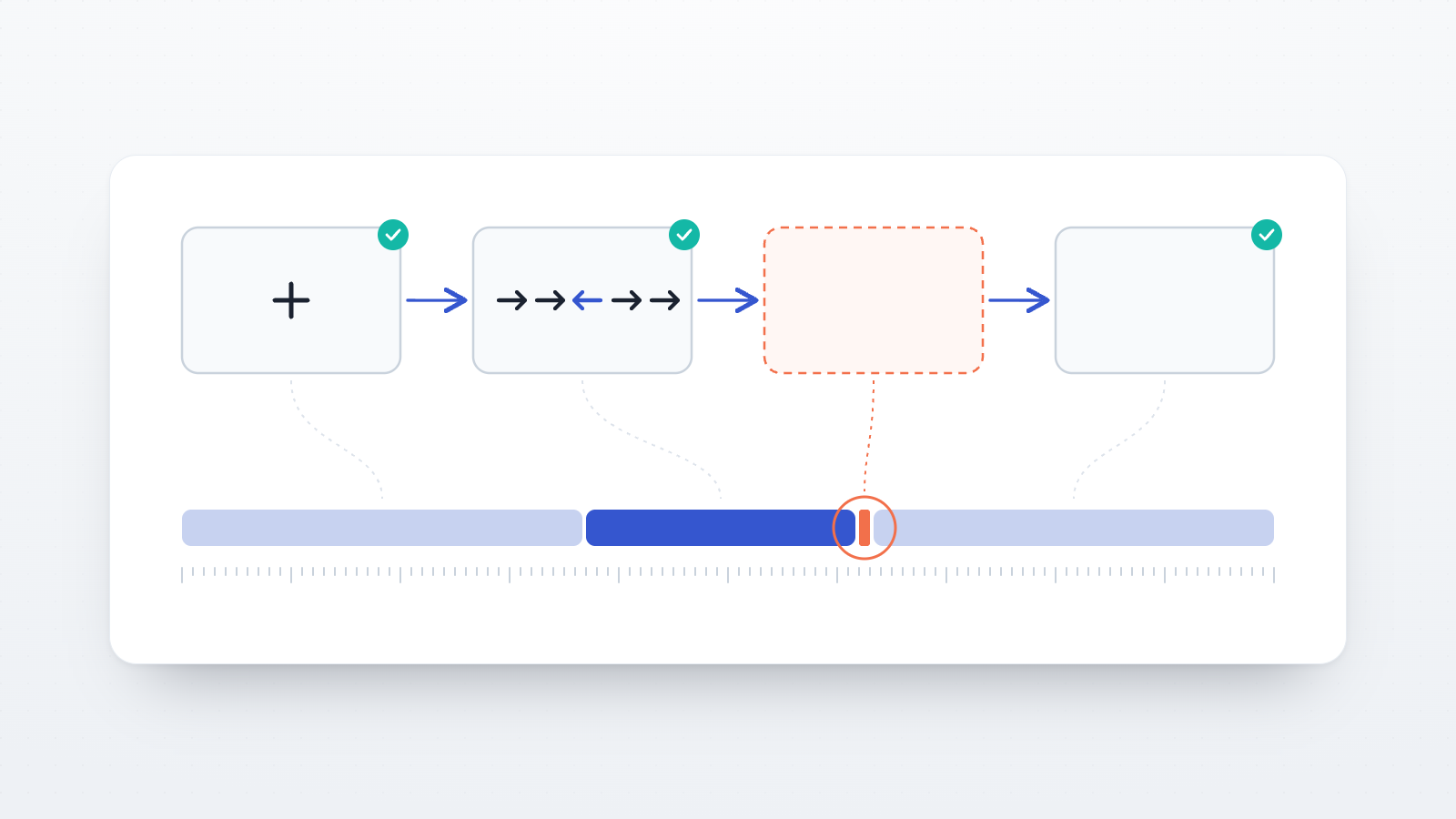
Keeping the calibration valid during the session
A calibration holds for the display, zoom level and seating position at the time it was made. Each of the following can change during a session.
Zooming the page. Zooming in enlarges every CSS pixel, so all stimuli become larger. Except in Safari, the device pixel ratio changes with the zoom level (MDN Web Docs, n.d.). A script on the run event of each trial screen can record it together with the window size:
// Record the zoom level and window size on every trial
this.data.dpr = window.devicePixelRatio
this.data.window_width = window.innerWidth
this.data.window_height = window.innerHeight
Trials whose dpr differs from calibration_dpr were shown at a different scale and can be excluded. In Safari, this comparison does not detect zooming, so the instructions can ask participants not to zoom the page. The lab.js Metadata plugin, added to the root of the task, also records the screen size, the window size and the device pixel ratio once at the start of the session.
Resizing the window or switching to full screen. On HTML screens, sizes based on --mm stay the same when the window changes, as the tests above showed. A smaller window can still cut off stimuli near its edges, so the recorded window size can be compared with the space the stimuli need. The Fullscreen plugin in the lab.js builder asks the browser to show the task in full screen, which keeps the available space constant. Muto (2025) ran the feasibility study in full-screen mode.
Phones and tablets. On touchscreens, pinch-zooming magnifies the page without changing the device pixel ratio (MDN Web Docs, n.d.), so it cannot be detected with the script above. In portrait orientation, an 85.60 mm card is also wider than many phone screens. Open Lab does not restrict studies to particular devices, so a requirement for a computer belongs in the study description and the instructions. The study setting Device information, which is on by default, records the participant's browser, operating system and screen size with each session, so sessions on other devices can be identified.
Moving closer or further away. In the online study of Li et al. (2020), participants who had been asked to keep their position were measured again in the middle and at the end of a 10-minute task. Their estimated distance changed by 3.9 cm on average (within-participant standard deviation), and the intraclass correlation of the three measurements was .88. Li et al. suggest that a single measurement may be enough for a 10-minute study and that longer studies repeat the measurement during the session. Brascamp (2021) suggests estimating the distance several times during an experiment, both to adjust stimulus sizes to small changes in distance and to identify participants who do not sit still. In lab.js, the blind-spot loop can be placed again between blocks, and the screen after it updates --deg for the following block.
What to report
The methods section can state which procedures were used and with which parameters: card or ruler calibration, the assumed blind-spot angle, the number of repetitions, the dot speed and the direction of movement. It can report the exclusion criteria applied to the calibration and the number of participants they excluded, and the distributions of the estimated screen scale and viewing distance, for example as range, mean and standard deviation. When the viewing distance was instructed rather than measured, stimuli are better reported in millimetres together with the instructed distance and the range of visual angles this implies. The lab.js version and the task file, exported as JSON, can be shared with the study materials, so that the calibration can be reproduced exactly.